

So you recently migrated from a Windows machine to your new Mac.
And like most of us, you are hopefully loving the new environment. But wait! You suddenly realize that a critical application that you need to utilize only works on Microsoft Windows. And after doing some searching, you come to the grim conclusion that there isn’t anything available for Mac.
Well take a deep breath my friend and don’t freak out, because ChurchIT has got you covered.
Dual-Booting
Now the Macintosh comes equipped with a piece of functionality called Dual-Booting, which allows you to then load Windows onto a separate part of your hard drive known as a hard drive partition.
You then must restart the Mac laptop or desktop machine and then choose to boot into either the Mac OSX or the Windows 7/XP operating system. But if you are like me, you end up using both the Windows and Mac OSes quite a bit during your day to day operations.
And shutting down your machine whenever you need to switch between the two is not only a huge drag, but a severe waste of your precious time.
Virtualization
Enter in a lovely piece of technology called virtualization. With virtualization, you can run Windows on top of the Mac operating system. In essence, it truly is like having a whole other “virtual” PC running right at your finger tips.
No restarting or shutting down, no bouncing back and forth, everything is seamless and easy.
Now in order to run a virtual PC you need some software to do it and there are several flavors available to you. The most major players are Parellels and VMware Fusion.
But if you are like most churches, you don’t want to have to throw another $79-99 dollars at the problem. So you sit and wonder “Man, I wish there was some free software to do this” and low and behold my friend there totally is.
I give you Virtual Box! Or rather Oracle gives you Virtual Box. In any case, Virtual Box is a beautiful piece of Open Source Software (OSS) and it runs well too.
Here are the step by step instructions that should have you rolling in no time. If you don’t understand what is going on below, forward the article to your tech guy or gal. I am sure they would appreciate having a tutorial to help them out.
Required:
- Virtual Box 3.1.8 or 3.2.0 (Download Here)
- Mac OSX 10.6
- Licensed Windows 7/Xp .iso or disc
How To:
1. Download the installation .dmg for the Mac
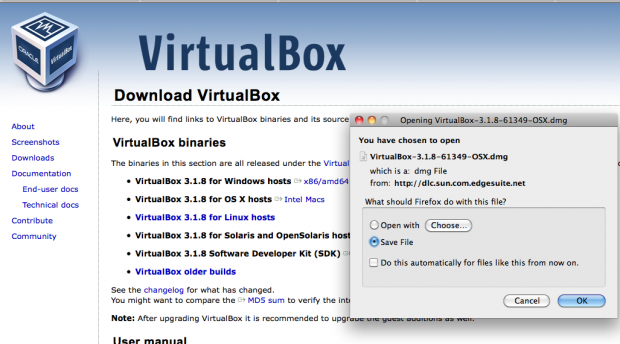
2. Install the Virtual Box application into your application folder
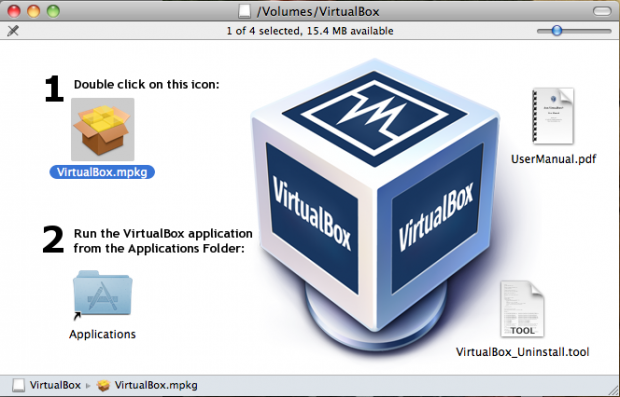
3. Run the Virtual Box Application
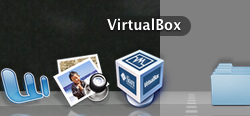
4. Track down a licensed copy of Windows XP/7, either a disc or an .iso. Click on “new” button
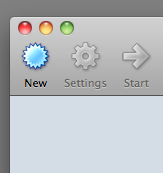
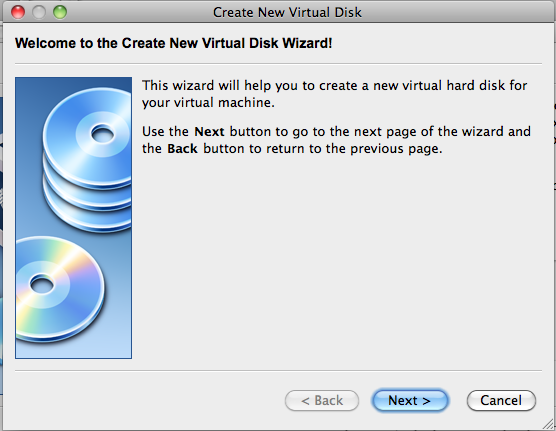
5. The Wizard will start and so go ahead and click “next”
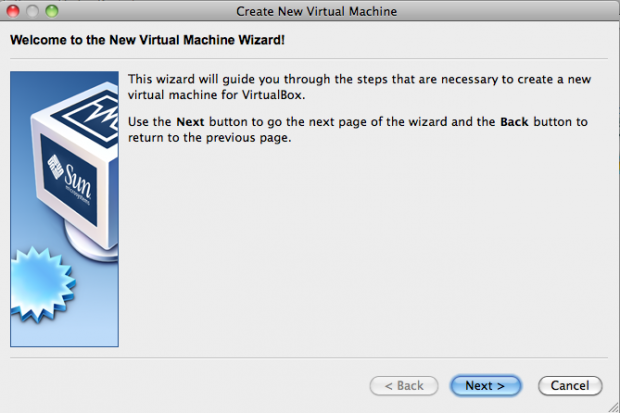
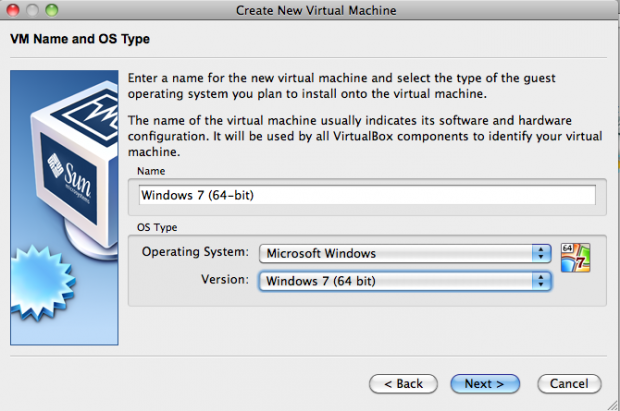
6. Choose a name for your virtual PC installation
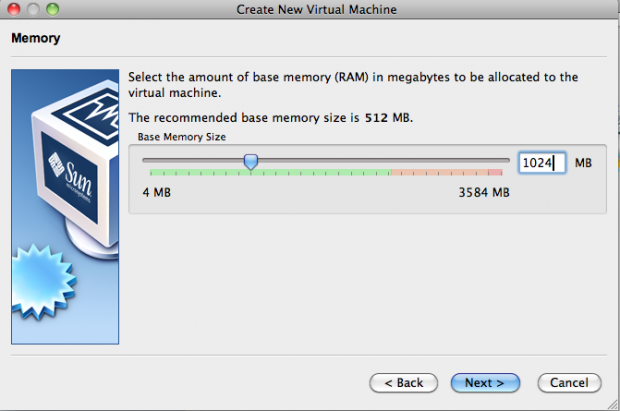
7. The memory defaults to 512mb but I set mine to 1024mb. Please note that I have 4GB of physical RAM on my machine, so you may have to do something different.
8. Leave the default settings for the creation of the virtual hard disk.
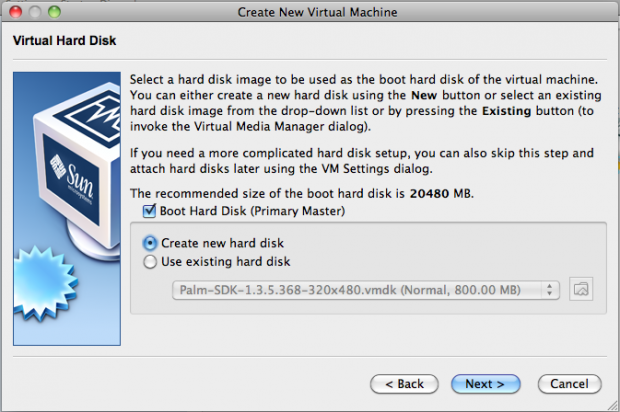
9. Click “Next”
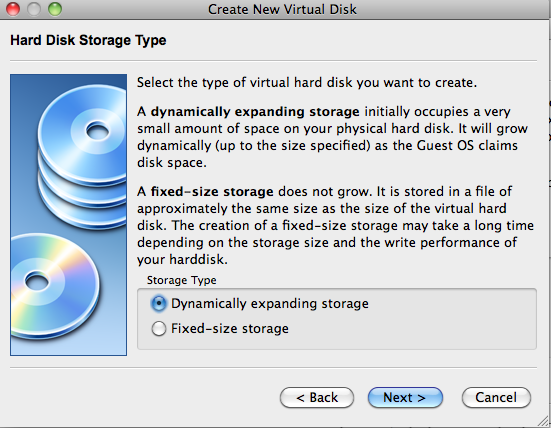
10. Leave the default settings for the dynamic scaling of the virtual hard disk
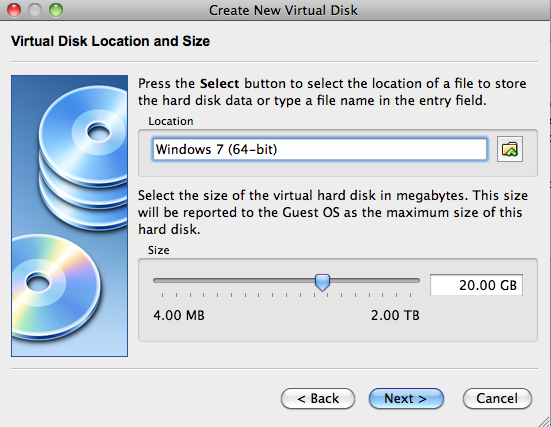
11. The initial size for the hard disk is 20GB. You can set it to whatever you’d like as long as you have the physical space available!
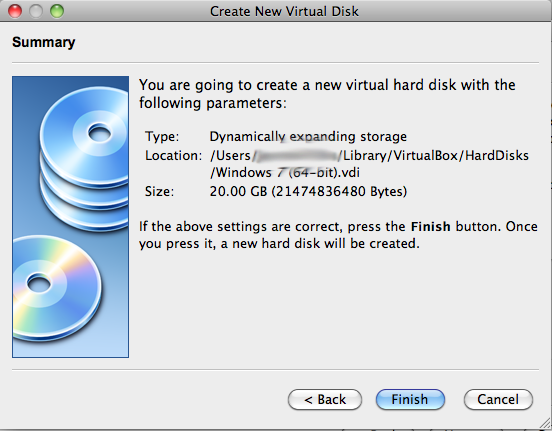
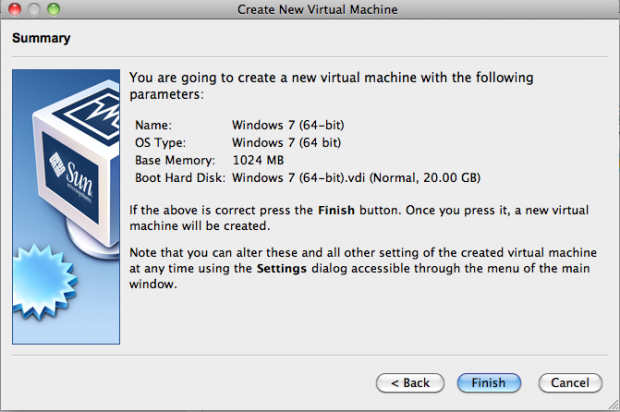
12. Click “Finish” for the creation of the virtual disk.
13. Click “Finish” for the creation of the Virtual Machine.
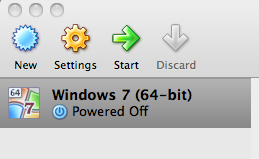
14. Click the icon to turn the “power” on, using your Virtual Machine.
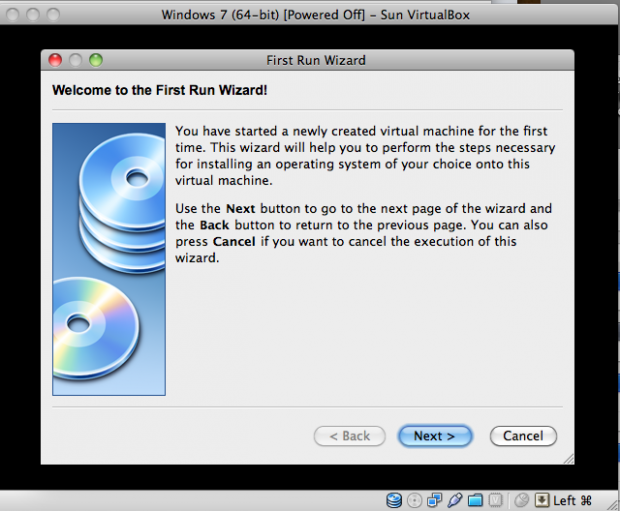
15. It will begin the operating system wizard, so click “Next”.
16. Click the “Add” button.
17. In my case I selected the Windows 7 .iso, but you can also install from the CD/DVD.
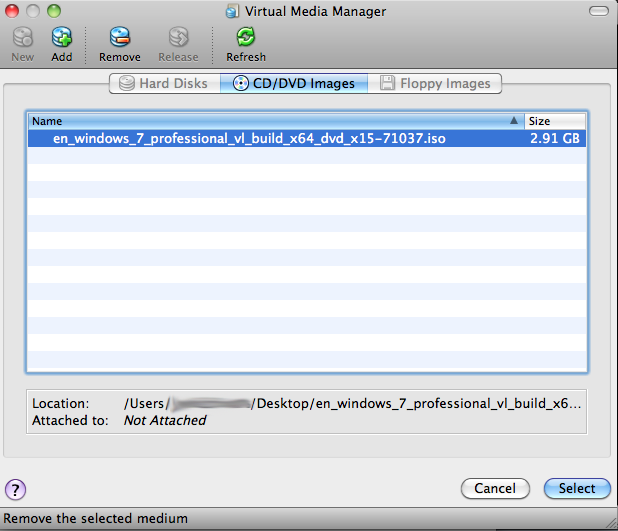
18. Click “Next” once you have selected your media.
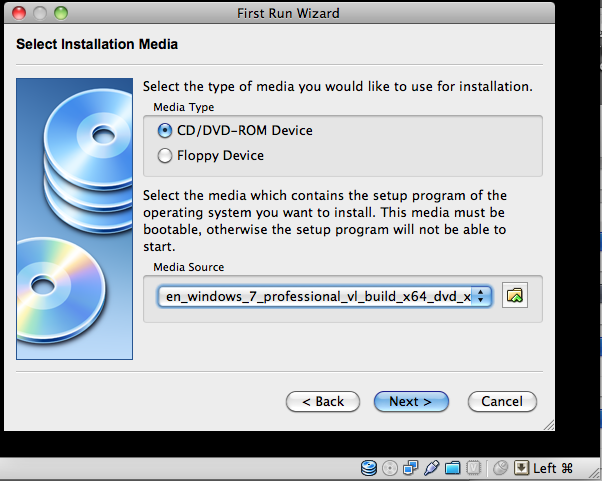
19. The Windows install screen will soon appear. Install Windows just like you would on a regular PC.
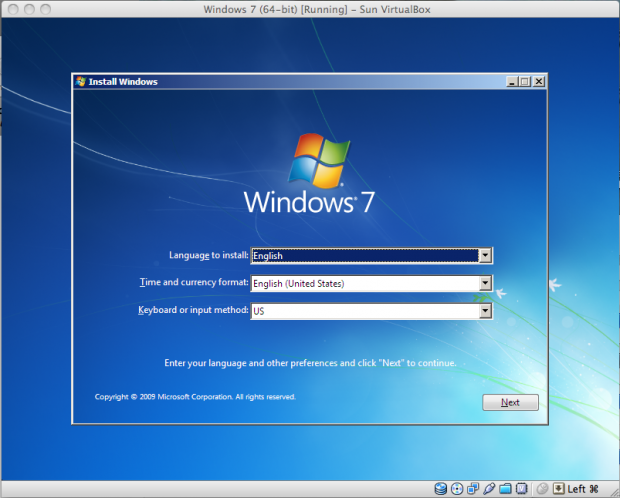
And that’s that!
Hopefully this gets you up and running with minimal effort. If you have comments or questions, feel free to ask below. I am sure the community will be able to help anyone who needs it.

Eric Dye
Support Lead at Valet, and Proprietor of DYECASTING. Human by day, gamer at night, lover of coffee, and all things spicy.






Great article! Thanks!
peace | dewde
This is about 4 days too late 🙁 I just purchased a VMWare license. I will, due to my geekyness, try this bad boy out also.
I wouldn’t mind pushing our Church to start working on switching to Mac also in the long term. They are just better machines.
Always good to see new apps coming out! Nice article..
Have you or anyone played with ‘Winebottler’ – http://winebottler.kronenberg.org/ ? Its in BETA but ive been running a few windows apps directly in my OS without fail! Its an awesome little app for the quick load of a windows app. have not tried it with something resource intensive however..
I actually started using this myself within Mac OSX. I think it runs very well considering the Beta tag associated to it.
I was using Parallels on my office MacPro a year ago.
Virtualbox is what I use at home and I find it exactly the same in features
@Matt
That sucks! If I wasn’t at Tek-x all last week I would have had it up sooner. We use almost all Macintosh here at our school district and have over 5k. We are pretty happy with them.
@dewde
Glad you liked it, hopefully it helps folks.
Nice!
Did you have to do anything special for the drivers? Or did VirtualBox take care of it?
Thanks for choosing the free, open source virtualization software to feature. I use it at home and work a lot and it’s been very stable and usable for my use cases. Sun/Oracle does have professional service contracts too if you need enterprise level support.
While you’re virtualizing, you might also download and install the latest Ubuntu or Mint ISO and try them out while you’re at it.
The latest VirtualBox 3.2.0 release also now has support for OSX guests if you aren’t on Mac, but wish you were. Of course, you need to have valid licenses for OSX and Windows to virtualize them. Ubuntu and Mint you can just download and try as they are free and open source.
Kevin
http://opensourcechurch.com
@Robert Spangler
In short the answer is “yes”, though it is a little weird to think about.
VirtualBox pretends* to be a very common piece of hardware. This way VirtualBox just uses the stock Windows drivers, and everything plays nice.
*emulates