
There are a number of reasons why most Churches and organizations don’t regularly update passwords or use stronger passwords in the first place. It’s already difficult to keep your personal passwords in check, let alone passwords that are used by multiple users.
Create a system and use a password manager!
They can be very handy for personal use, but they are absolutely invaluable for Churches and organizations.
Here are three password managers for you to consider:
1Password
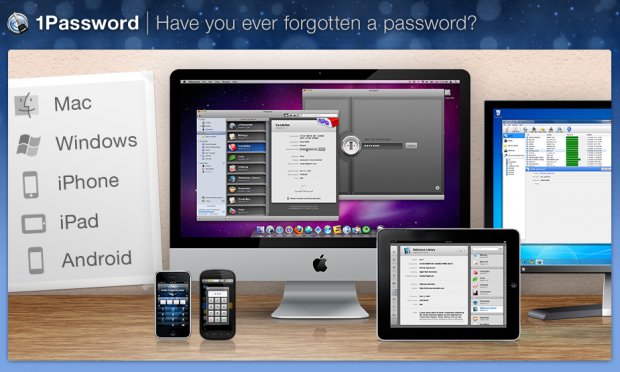
1Password is solid.
It not only manages the passwords, but it can also generate strong, unique passwords at the same time. It’s easy and simple to use:
Select one of your saved logins from 1Password’s Go & Fill menu and it takes you to the site, securely fills in your username and passwords, logs you in, all with just one click.
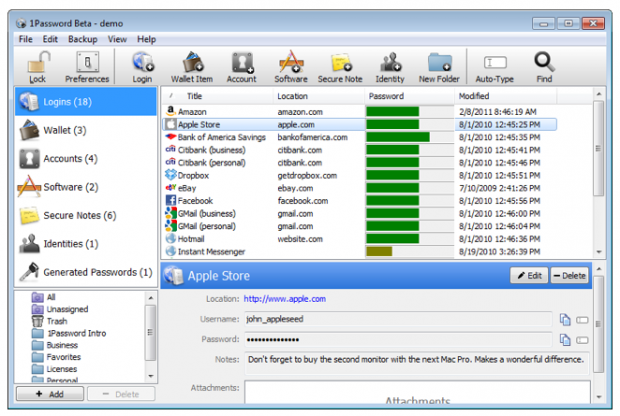
1Password flavors include:
- Mac
- Windows
- iPhone/iTouch
- iPad
- Android
Another nice feature 1Password includes is the ability to setup 1Password with a Dropbox account, so you can sync all your devices and computers from the same spot.
I like it!
You can try 1Password for 30-days at no charge and they offer a 100% Money-Back Guarantee.
Price:
- $39.99 – Desktop
- $14.99 – iPhone & iPad
- Free – Android (Considered “half-baked”)
Learn more and purchase 1Password from their website.
SplashID Safe
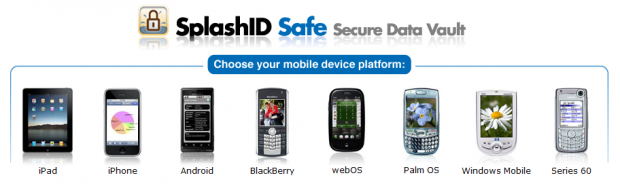
SplashID Safe is a desktop app that allows you to easily view and edit your data and syncs with your mobile device:
- iPhone
- iPad
- Blackberry
- Android
- And more!
SplashID Safe is pretty slick.
You have an unlimited number of customizable record types and categories to store passwords, and any other data you would like to put on lock-down. You can define list views, and my favorite part, custom icons and field labels!
I love the flexibility, here.
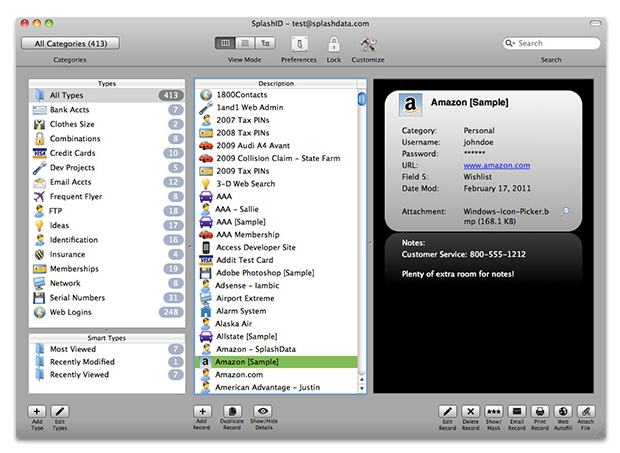
Unbreakable AES and 256-bit Blowfish encryption provides proven protection for safe password management; secure field masking offers additional protection for sensitive data like passwords; automatic password generator feature creates un-guessable passwords and prevents the security risk of using the same passwords repeatedly
Desktop and mobile versions are $9.95 each.
Learn more about SplashID on their website.
KeePass
Open source lovers rejoice!
KeePass is free.
It isn’t pretty, but it comes with some interesting features.
- Master Password
One password unlocks it all. - Key Files
Put the key file on a USB key, use the USB key to unlock all of your passwords. - Combine Methods
This combines both a password and a key file to unlock the database. - Portable Install
You can run KeePass straight from an USB stick (Windows)
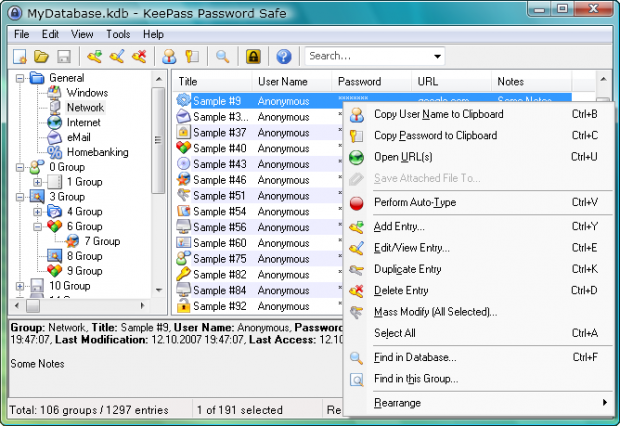
KeePass offers many plugins, extensions and mobile versions.
Learn more about KeePass and download it for free from the KeePass website.
Conclusion
1Password and SplashID feel a little more like personal use, whereas KeePass seems like it would make a solid solution for a Church or organization. On the other hand, if you you don’t have a lot of tech experience, you may want to stay away from the open source on this one, and stick with a paid product, so you can lean on their tech support if you run into any problems or have any questions. If you choose to go with KeePass, I would strongly recommend configuring KeePass to run on Dropbox, so you are safe from losing all of your cryptic passwords from a hardware failure or theft.
If you’ve had any experience with these, please, weigh-in!
What password management system are you currently using?
[HT: unclutter]

Eric Dye
Support Lead at Valet, and Proprietor of DYECASTING. Human by day, gamer at night, lover of coffee, and all things spicy.




I just purchased 1Password today after a 30 day free trial. I found that the application is easy to use across multiple macs & my iPhone. I use dropbox to keep everything in sync. One of the main reasons I moved forward with 1Password was because the application has been regularly updated over the last 30 days including the browser plugins. Firefox & Safari work the best, Chrome extension works just not as seamless.
FYI I found a 20% off coupon from retailmenot.com!
I love the 1Password/dropbox combo. Is a lifesaver when I’m out and about and a client needs to know a password they’ve forgotten!
Awesome!
I love hearing from those that have really cracked on a solution.
+10pts for the coupon info!
I use eWallet GO! on my iPhone and my Mac. It works great, is way cheaper than anything else out there and syncs across platforms via Dropbox. Its only $0.99 for the iPhone app and the Mac is FREE. No subscriptions, no fees. I love it.
Sweet!
Good info.
I have used SplashID forever… from my Palm days through BB to Android. I deal with hundreds of passwords, IDs and serial numbers (mine and church’s) so having a good piece of software/password generator is invaluable.
Dropbox synchronization is definitely a plus.
Ascendo Datavault should be releasing an Android client soon; they already have an iOS port.
Nice! Gotta love the Dropbox sync.
I’ve been using KeePass for some years now, and would recommend it to everyone. There may be a small learning curve with the UI for some, but it’s versatility is what hooked me. I have it stored in my UbuntuOne cloud, and can use it natively in Windows boxes, Linux boxes, portably on my USB drives, and on my Android phone. Plus, you can use it to generate passwords of your complexity choosing, which is a nice feature to have available on the fly. –
That’s some heavy use!
My password manager of choice is LASTPASS and what I love about it is its ubiquitous availability on multiple platforms, on browsers, on mobile, even on a USB flash drive. And, everything is encrypted through-and-through, so it’s safe that way too.
Nice! Another option. Love it!
I’ve used KeePass for years too. In Windows, you can highlight an entry and Ctrl-V will paste both the user ID and Password onto the most-recent other window. It’s very handy.
Love the feedback, thanks!
I use 1password for all accounts that I manage at our district office and various ministries and also for personal use and the option for multiple identities is second to none.
Nice! Thanks for weighing-in! It is really helpful for those looking for solid solutions. 😀
My problem now is that my .org wants users to separate out personal and work data. 1p has it all in one place (very convenient). Suggestions?
Maybe two password keepers?